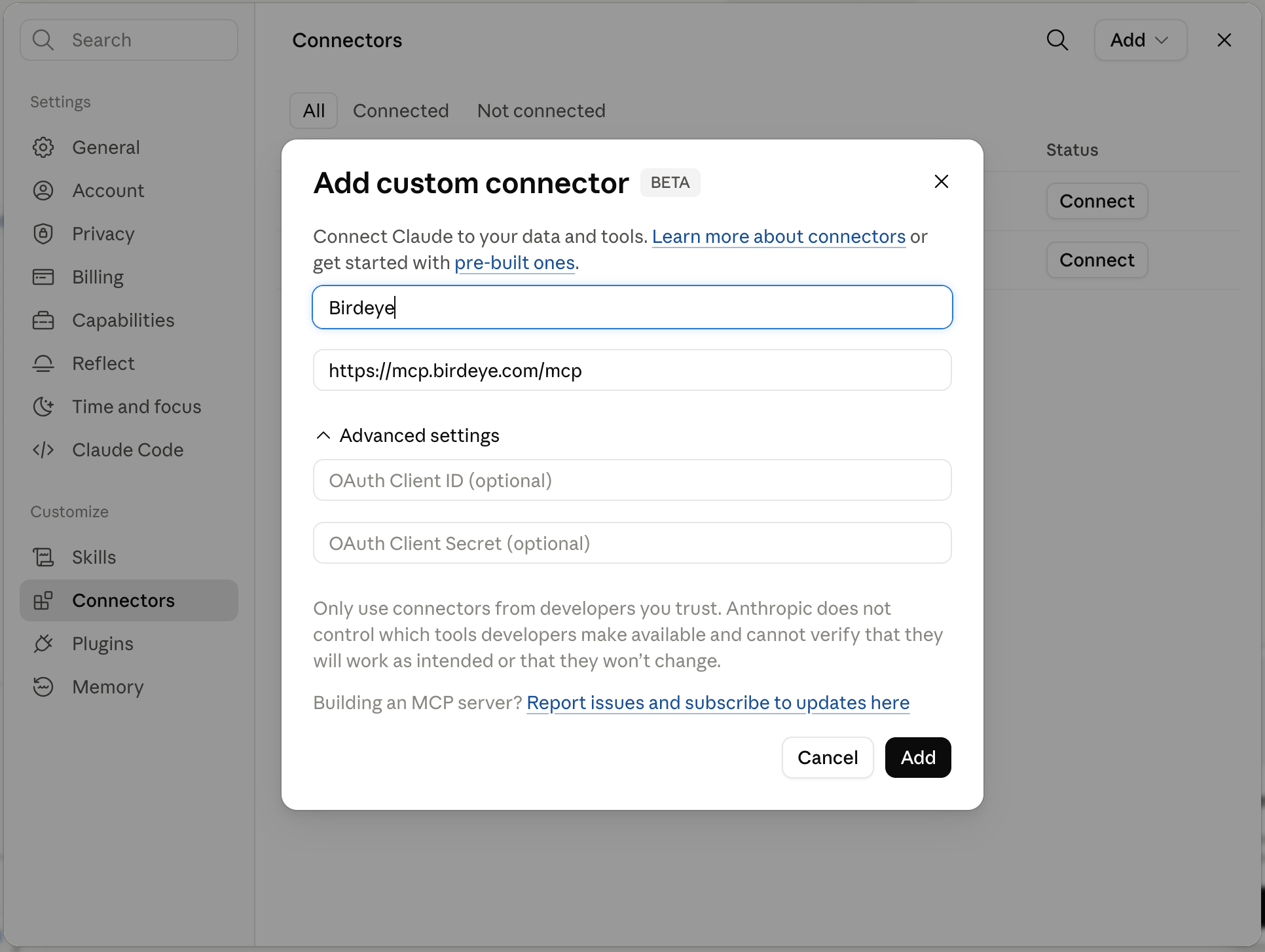
EU accounts: use https://mcp-eu.birdeye.com/mcp instead.
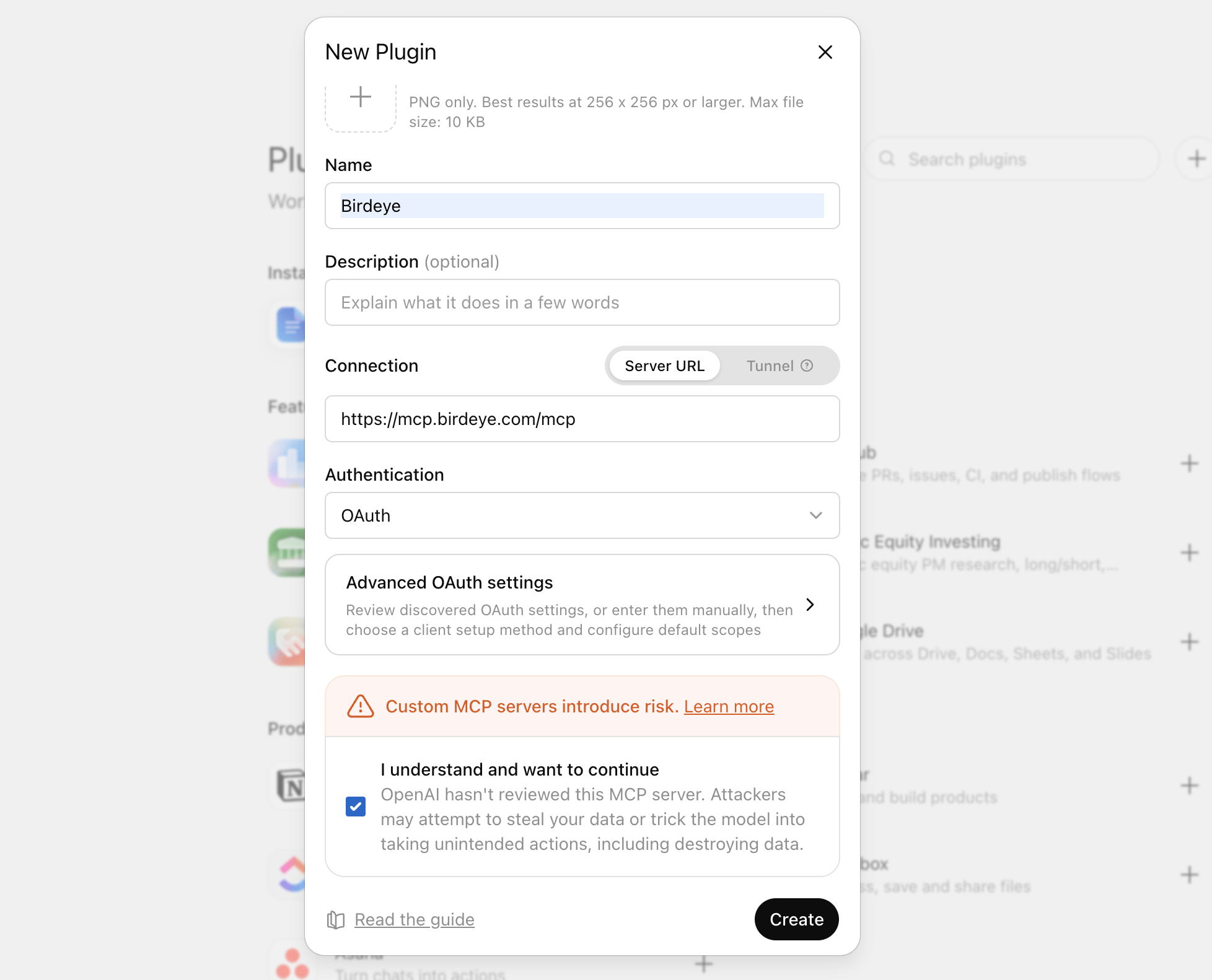
Choose Authentication as OAuth
Check I understand and want to continue → click Create
Authorize with your Birdeye credentials
Start a new conversation and ask anything about your Birdeye data by Mentioning Birdeye in chat.
Any client that supports MCP over Streamable HTTP can connect to Birdeye.Server URL (Global): https://mcp.birdeye.com/mcp Server URL (EU): https://mcp-eu.birdeye.com/mcp Transport: Streamable HTTP (stateless sessions) Auth: OAuth 2.0 with Dynamic Client RegistrationRefer to your client’s documentation for how to add an authenticated MCP server.
{"docsConfig":{"theme":"mint","$schema":"https://mintlify.com/docs.json","name":"Birdeye Developer Portal","colors":{"primary":"#007AFF","light":"#3395FF","dark":"#0055CC"},"logo":{"light":"https://mintcdn.com/birdeye-0229a3ce/UGWhTcR8ROU1U6UM/images/birdeye-vector-logo.svg?fit=max\u0026auto=format\u0026n=UGWhTcR8ROU1U6UM\u0026q=85\u0026s=2a909a704f4e2bbfdc09801f660a2265","dark":"https://mintcdn.com/birdeye-0229a3ce/fd4F54fLnDLtDWF0/images/birdeye-vector-logo-dark.svg?fit=max\u0026auto=format\u0026n=fd4F54fLnDLtDWF0\u0026q=85\u0026s=8c188d7bcbf3c5140059fc0044e4d385"},"favicon":"https://mintcdn.com/birdeye-0229a3ce/hPnwFq14OPbAVJLt/images/birdeye-favicon.svg?fit=max\u0026auto=format\u0026n=hPnwFq14OPbAVJLt\u0026q=85\u0026s=e82b5184dbaedf10e12df434049ed2e6","api":{"examples":{"prefill":true}},"navbar":{"links":[{"href":"https://birdeye.com","label":"Birdeye"}]},"footer":{"socials":{"linkedin":"https://www.linkedin.com/company/birdeye"}},"styling":{"latex":false},"navigation":{"pages":[]}},"deployment":{"deploymentMetadataValue":{"subdomain":"birdeye-0229a3ce","hasAudioNarration":false,"actualSubdomain":"birdeye-0229a3ce","customDomains":["docs.birdeye.com"],"gitSource":{"type":"github","owner":"birdeyeinc","repo":"birdeye-api-docs","deployBranch":"master","contentDirectory":"","isPrivate":true,"mountPath":"","label":""},"chroma":{"collectionId":"0bc25e83-7973-474d-98c9-a13f1ed6cd33","liveDeploymentHistoryId":"6adb43a225769d6ebcdbd033","schemaVersion":"v3","latestBuiltDeploymentHistoryId":"6adb43a225769d6ebcdbd033"},"entitlements":{"AI_CHAT":{"status":"ENABLED"},"WEB_MCP":{"status":"ENABLED"},"NARRATION":{"status":"ENABLED"}},"buildId":"6adb43a225769d6ebcdbd033","clientVersion":"0.0.4043","searchFilterCounts":[{"language":"default","tag":"API Reference","count":213},{"language":"default","tag":"Reference","count":207},{"language":"default","tag":"MCP","count":107},{"language":"default","tag":"Tools","count":102},{"language":"default","tag":"Business","count":25},{"language":"default","tag":"Reviews","count":23},{"language":"default","tag":"Insight AI","count":18},{"language":"default","tag":"Report","count":18},{"language":"default","tag":"Contact","count":17},{"language":"default","tag":"Listing","count":17}]},"assistantConfig":{"enableAskAiButton":false,"enableStarterQuestions":false,"enableContextualStarterQuestions":false,"enableAskAiSearchBar":true},"basePath":"","hasChatPermissions":true,"hasWebMcpPermissions":true,"toggles":[],"googleFontsInlined":false},"customCss":[{"filePath":"custom.css","content":".nav-tabs-item{font-weight:600!important}.nav-tabs-item[aria-current=location],.nav-tabs-item[data-active=true]{font-weight:700!important}[class*=branding],[class*=powered],a[href*=\"mintlify.com\"]{display:none!important}"}],"page":{"pagePath":"mcp/quickstart","slug":"/mcp/quickstart","pageMetadata":{"title":"Quickstart","description":"Connect your AI assistant to Birdeye in under 5 minutes.","href":"/mcp/quickstart"},"description":{"compiledSource":"\"use strict\";\nconst {jsx: _jsx} = arguments[0];\nconst {useMDXComponents: _provideComponents} = arguments[0];\nfunction _createMdxContent(props) {\n const _components = {\n p: \"p\",\n ..._provideComponents(),\n ...props.components\n };\n return _jsx(_components.p, {\n children: \"Connect your AI assistant to Birdeye in under 5 minutes.\"\n });\n}\nfunction MDXContent(props = {}) {\n const {wrapper: MDXLayout} = {\n ..._provideComponents(),\n ...props.components\n };\n return MDXLayout ? _jsx(MDXLayout, {\n ...props,\n children: _jsx(_createMdxContent, {\n ...props\n })\n }) : _createMdxContent(props);\n}\nreturn {\n default: MDXContent\n};\n","frontmatter":{},"scope":{}},"pageType":"default","mdx":{"mdxSource":{"compiledSource":"\"use strict\";const{Fragment:_Fragment,jsx:_jsx,jsxs:_jsxs}=arguments[0];const{useMDXComponents:_provideComponents}=arguments[0];function _createMdxContent(props){const _components={a:`a`,br:`br`,code:`code`,li:`li`,ol:`ol`,p:`p`,pre:`pre`,span:`span`,strong:`strong`,tbody:`tbody`,td:`td`,th:`th`,thead:`thead`,tr:`tr`,..._provideComponents(),...props.components},{Card,CardGroup,CodeBlock,Heading,Info,Note,OptimizedImage,Tab,Table,Tabs}=_components;if(!Card)_missingMdxReference(`Card`,true);if(!CardGroup)_missingMdxReference(`CardGroup`,true);if(!CodeBlock)_missingMdxReference(`CodeBlock`,true);if(!Heading)_missingMdxReference(`Heading`,true);if(!Info)_missingMdxReference(`Info`,true);if(!Note)_missingMdxReference(`Note`,true);if(!OptimizedImage)_missingMdxReference(`OptimizedImage`,true);if(!Tab)_missingMdxReference(`Tab`,true);if(!Table)_missingMdxReference(`Table`,true);if(!Tabs)_missingMdxReference(`Tabs`,true);return _jsxs(_Fragment,{children:[_jsx(Heading,{level:`2`,id:`mcp-server-url`,children:`MCP Server URL`}),`\n`,_jsxs(Table,{children:[_jsx(_components.thead,{children:_jsxs(_components.tr,{children:[_jsx(_components.th,{children:`Region`}),_jsx(_components.th,{children:`MCP Server URL`})]})}),_jsxs(_components.tbody,{children:[_jsxs(_components.tr,{children:[_jsx(_components.td,{children:`Global (default)`}),_jsx(_components.td,{children:_jsx(_components.code,{children:`https://mcp.birdeye.com/mcp`})})]}),_jsxs(_components.tr,{children:[_jsx(_components.td,{children:`EU`}),_jsx(_components.td,{children:_jsx(_components.code,{children:`https://mcp-eu.birdeye.com/mcp`})})]})]})]}),`\n`,_jsx(Info,{children:_jsxs(_components.p,{children:[`Use the `,_jsx(_components.strong,{children:`EU endpoint`}),` if your Birdeye account is hosted in the European Union region.`]})}),`\n`,_jsx(_components.p,{children:`Add the appropriate URL for your region to your AI client to get started. Choose your client below.`}),`\n`,_jsxs(Tabs,{children:[_jsxs(Tab,{title:`Claude (claude.ai)`,id:`claude-claude-ai`,children:[_jsxs(_components.ol,{children:[`\n`,_jsxs(_components.li,{children:[`Go to `,_jsx(_components.a,{href:`https://claude.ai`,children:`claude.ai`}),` and open `,_jsx(_components.strong,{children:`Customize`}),` tab`]}),`\n`,_jsxs(_components.li,{children:[`Navigate to `,_jsx(_components.strong,{children:`Connectors`})]}),`\n`,_jsxs(_components.li,{children:[`Click `,_jsx(_components.strong,{children:`+`}),` button → choose `,_jsx(_components.strong,{children:`Add custom connector`})]}),`\n`,_jsxs(_components.li,{children:[`Enter `,_jsx(_components.strong,{children:`Name`}),` as `,_jsx(_components.strong,{children:`Birdeye`})]}),`\n`,_jsxs(_components.li,{children:[`Enter the `,_jsx(_components.strong,{children:`Remote MCP server URL`}),` and click `,_jsx(_components.strong,{children:`Add`})]}),`\n`]}),_jsx(CodeBlock,{numberOfLines:`2`,language:`text`,children:_jsx(_components.pre,{className:`shiki shiki-themes github-light-default dark-plus`,style:{backgroundColor:`#ffffff`,\"--shiki-dark-bg\":`#0B0C0E`,color:`#1f2328`,\"--shiki-dark\":`#D4D4D4`},language:`text`,children:_jsxs(_components.code,{language:`text`,numberOfLines:`2`,children:[_jsx(_components.span,{className:`line`,children:_jsx(_components.span,{children:`https://mcp.birdeye.com/mcp`})}),`\n`,_jsx(_components.span,{className:`line`,children:_jsx(_components.span,{})})]})})}),_jsxs(Note,{children:[`EU accounts: use `,_jsx(_components.code,{children:`https://mcp-eu.birdeye.com/mcp`}),` instead.`]}),_jsx(OptimizedImage,{src:`https://mintcdn.com/birdeye-0229a3ce/VNEqNoK2YHNzYYcm/images/quickstart-claude.png?fit=max\u0026auto=format\u0026n=VNEqNoK2YHNzYYcm\u0026q=85\u0026s=69c1f46de39d111ff2961d06422cfd04`,alt:`Claude Add custom connector dialog with Birdeye name and MCP URL filled in`,\"data-og-width\":`1932`,width:`1932`,\"data-og-height\":`1454`,height:`1454`,\"data-path\":`images/quickstart-claude.png`,\"data-optimize\":`true`,\"data-opv\":`3`,srcset:`https://mintcdn.com/birdeye-0229a3ce/VNEqNoK2YHNzYYcm/images/quickstart-claude.png?w=280\u0026fit=max\u0026auto=format\u0026n=VNEqNoK2YHNzYYcm\u0026q=85\u0026s=c88ac200ae3ead595d295a98fb38cbac 280w, https://mintcdn.com/birdeye-0229a3ce/VNEqNoK2YHNzYYcm/images/quickstart-claude.png?w=560\u0026fit=max\u0026auto=format\u0026n=VNEqNoK2YHNzYYcm\u0026q=85\u0026s=40f59705cbba1b7067d6643b9ee005fe 560w, https://mintcdn.com/birdeye-0229a3ce/VNEqNoK2YHNzYYcm/images/quickstart-claude.png?w=840\u0026fit=max\u0026auto=format\u0026n=VNEqNoK2YHNzYYcm\u0026q=85\u0026s=0ff18d7b54a5d35ca5451f8c438e565a 840w, https://mintcdn.com/birdeye-0229a3ce/VNEqNoK2YHNzYYcm/images/quickstart-claude.png?w=1100\u0026fit=max\u0026auto=format\u0026n=VNEqNoK2YHNzYYcm\u0026q=85\u0026s=d01ef80d5ec28bc3cb7306ba094357a6 1100w, https://mintcdn.com/birdeye-0229a3ce/VNEqNoK2YHNzYYcm/images/quickstart-claude.png?w=1650\u0026fit=max\u0026auto=format\u0026n=VNEqNoK2YHNzYYcm\u0026q=85\u0026s=1c9026a224b34fe0a5bf3ec335f0bd21 1650w, https://mintcdn.com/birdeye-0229a3ce/VNEqNoK2YHNzYYcm/images/quickstart-claude.png?w=2500\u0026fit=max\u0026auto=format\u0026n=VNEqNoK2YHNzYYcm\u0026q=85\u0026s=5ea25911b80f8e2c87245d8377997441 2500w`}),_jsxs(_components.ol,{start:`6`,children:[`\n`,_jsxs(_components.li,{children:[`Click `,_jsx(_components.strong,{children:`Connect`}),` — Claude will initiate the OAuth flow`]}),`\n`,_jsx(_components.li,{children:`Sign in with your Birdeye credentials to authorize access`}),`\n`,_jsx(_components.li,{children:`Start a new conversation and ask anything about your Birdeye data`}),`\n`]})]}),_jsxs(Tab,{title:`ChatGPT`,id:`chatgpt`,children:[_jsxs(_components.ol,{children:[`\n`,_jsxs(_components.li,{children:[`Go to `,_jsx(_components.a,{href:`https://chatgpt.com`,children:`chatgpt.com`}),` and open `,_jsx(_components.strong,{children:`Settings`})]}),`\n`,_jsxs(_components.li,{children:[`Navigate to `,_jsx(_components.strong,{children:`Plugins`}),` → `,_jsx(_components.strong,{children:`Add new plugin`})]}),`\n`,_jsxs(_components.li,{children:[`Enter the Name as `,_jsx(_components.strong,{children:`Birdeye`})]}),`\n`,_jsxs(_components.li,{children:[`Enter the Connection URL:`,`\n`,_jsx(CodeBlock,{numberOfLines:`2`,language:`text`,children:_jsx(_components.pre,{className:`shiki shiki-themes github-light-default dark-plus`,style:{backgroundColor:`#ffffff`,\"--shiki-dark-bg\":`#0B0C0E`,color:`#1f2328`,\"--shiki-dark\":`#D4D4D4`},language:`text`,children:_jsxs(_components.code,{language:`text`,numberOfLines:`2`,children:[_jsx(_components.span,{className:`line`,children:_jsx(_components.span,{children:`https://mcp.birdeye.com/mcp`})}),`\n`,_jsx(_components.span,{className:`line`,children:_jsx(_components.span,{})})]})})}),`\n`,_jsxs(Note,{children:[`EU accounts: use `,_jsx(_components.code,{children:`https://mcp-eu.birdeye.com/mcp`}),` instead.`]}),`\n`]}),`\n`,_jsxs(_components.li,{children:[`Choose Authentication as `,_jsx(_components.strong,{children:`OAuth`})]}),`\n`,_jsxs(_components.li,{children:[`Check `,_jsx(_components.strong,{children:`I understand and want to continue`}),` → click `,_jsx(_components.strong,{children:`Create`})]}),`\n`]}),_jsx(OptimizedImage,{src:`https://mintcdn.com/birdeye-0229a3ce/VNEqNoK2YHNzYYcm/images/quickstart-chatgpt.png?fit=max\u0026auto=format\u0026n=VNEqNoK2YHNzYYcm\u0026q=85\u0026s=6f11ab72c981f361d955a025aec9e46e`,alt:`ChatGPT New Plugin dialog with Birdeye name, MCP URL, and OAuth selected`,\"data-og-width\":`1956`,width:`1956`,\"data-og-height\":`1582`,height:`1582`,\"data-path\":`images/quickstart-chatgpt.png`,\"data-optimize\":`true`,\"data-opv\":`3`,srcset:`https://mintcdn.com/birdeye-0229a3ce/VNEqNoK2YHNzYYcm/images/quickstart-chatgpt.png?w=280\u0026fit=max\u0026auto=format\u0026n=VNEqNoK2YHNzYYcm\u0026q=85\u0026s=bdf87abaf3fe79ec62ba4a79ec6c69aa 280w, https://mintcdn.com/birdeye-0229a3ce/VNEqNoK2YHNzYYcm/images/quickstart-chatgpt.png?w=560\u0026fit=max\u0026auto=format\u0026n=VNEqNoK2YHNzYYcm\u0026q=85\u0026s=1fa09bbba0f5e1e46f71bca2d10d60ed 560w, https://mintcdn.com/birdeye-0229a3ce/VNEqNoK2YHNzYYcm/images/quickstart-chatgpt.png?w=840\u0026fit=max\u0026auto=format\u0026n=VNEqNoK2YHNzYYcm\u0026q=85\u0026s=e88a22f21ad7de9565ba62f30df18cb9 840w, https://mintcdn.com/birdeye-0229a3ce/VNEqNoK2YHNzYYcm/images/quickstart-chatgpt.png?w=1100\u0026fit=max\u0026auto=format\u0026n=VNEqNoK2YHNzYYcm\u0026q=85\u0026s=bdce4c1ce8c9e40f1304754372988dae 1100w, https://mintcdn.com/birdeye-0229a3ce/VNEqNoK2YHNzYYcm/images/quickstart-chatgpt.png?w=1650\u0026fit=max\u0026auto=format\u0026n=VNEqNoK2YHNzYYcm\u0026q=85\u0026s=64abde8a8291b872a5a4730bb52f97b8 1650w, https://mintcdn.com/birdeye-0229a3ce/VNEqNoK2YHNzYYcm/images/quickstart-chatgpt.png?w=2500\u0026fit=max\u0026auto=format\u0026n=VNEqNoK2YHNzYYcm\u0026q=85\u0026s=31d0906998dc8faf16b104c860c61451 2500w`}),_jsxs(_components.ol,{start:`7`,children:[`\n`,_jsx(_components.li,{children:`Authorize with your Birdeye credentials`}),`\n`,_jsx(_components.li,{children:`Start a new conversation and ask anything about your Birdeye data by Mentioning Birdeye in chat.`}),`\n`]})]}),_jsxs(Tab,{title:`Other MCP Clients`,id:`other-mcp-clients`,children:[_jsxs(_components.p,{children:[`Any client that supports MCP over `,_jsx(_components.strong,{children:`Streamable HTTP`}),` can connect to Birdeye.`]}),_jsxs(_components.p,{children:[_jsx(_components.strong,{children:`Server URL (Global)`}),`: `,_jsx(_components.code,{children:`https://mcp.birdeye.com/mcp`}),_jsx(_components.br,{}),`\n`,_jsx(_components.strong,{children:`Server URL (EU)`}),`: `,_jsx(_components.code,{children:`https://mcp-eu.birdeye.com/mcp`}),_jsx(_components.br,{}),`\n`,_jsx(_components.strong,{children:`Transport`}),`: Streamable HTTP (stateless sessions)`,_jsx(_components.br,{}),`\n`,_jsx(_components.strong,{children:`Auth`}),`: OAuth 2.0 with Dynamic Client Registration`]}),_jsx(_components.p,{children:`Refer to your client’s documentation for how to add an authenticated MCP server.`})]})]}),`\n`,_jsx(Heading,{level:`2`,id:`verify-the-connection`,children:`Verify the Connection`}),`\n`,_jsx(_components.p,{children:`Once connected, try these prompts to confirm everything is working:`}),`\n`,_jsx(CodeBlock,{numberOfLines:`2`,language:`text`,children:_jsx(_components.pre,{className:`shiki shiki-themes github-light-default dark-plus`,style:{backgroundColor:`#ffffff`,\"--shiki-dark-bg\":`#0B0C0E`,color:`#1f2328`,\"--shiki-dark\":`#D4D4D4`},language:`text`,children:_jsxs(_components.code,{language:`text`,numberOfLines:`2`,children:[_jsx(_components.span,{className:`line`,children:_jsx(_components.span,{children:`What is my business name and how many locations do I have?`})}),`\n`,_jsx(_components.span,{className:`line`,children:_jsx(_components.span,{})})]})})}),`\n`,_jsx(CodeBlock,{numberOfLines:`2`,language:`text`,children:_jsx(_components.pre,{className:`shiki shiki-themes github-light-default dark-plus`,style:{backgroundColor:`#ffffff`,\"--shiki-dark-bg\":`#0B0C0E`,color:`#1f2328`,\"--shiki-dark\":`#D4D4D4`},language:`text`,children:_jsxs(_components.code,{language:`text`,numberOfLines:`2`,children:[_jsx(_components.span,{className:`line`,children:_jsx(_components.span,{children:`Give me a review and rating overview for the last 30 days.`})}),`\n`,_jsx(_components.span,{className:`line`,children:_jsx(_components.span,{})})]})})}),`\n`,_jsx(_components.p,{children:`If the tools are connected correctly, your AI assistant will call the Birdeye MCP server and return live data from your account.`}),`\n`,_jsx(Heading,{level:`2`,id:`next-steps`,children:`Next Steps`}),`\n`,_jsxs(CardGroup,{cols:2,children:[_jsx(Card,{title:`Authentication`,icon:`lock`,href:`/mcp/authentication`,children:_jsx(_components.p,{children:`Understand how OAuth 2.0 secures your data`})}),_jsx(Card,{title:`Tools Overview`,icon:`wrench`,href:`/mcp/tools/overview`,children:_jsx(_components.p,{children:`See all available tools and their parameters`})})]})]})}function MDXContent(props={}){const{wrapper:MDXLayout}={..._provideComponents(),...props.components};return MDXLayout?_jsx(MDXLayout,{...props,children:_jsx(_createMdxContent,{...props})}):_createMdxContent(props)}return{default:MDXContent};function _missingMdxReference(id,component){throw new Error(`Expected `+(component?`component`:`object`)+\" `\"+id+\"` to be defined: you likely forgot to import, pass, or provide it.\")}","frontmatter":{},"scope":{"config":{},"pageMetadata":{"title":"Quickstart","description":"Connect your AI assistant to Birdeye in under 5 minutes.","href":"/mcp/quickstart"}}},"mdxSourceWithNoJs":null},"mdxExtracts":{"tableOfContents":[{"title":"MCP Server URL","slug":"mcp-server-url","depth":2,"children":[]},{"title":"Verify the Connection","slug":"verify-the-connection","depth":2,"children":[]},{"title":"Next Steps","slug":"next-steps","depth":2,"children":[]}],"codeExamples":{}},"jsLinks":[],"subdomain":"birdeye-0229a3ce","siteName":"Birdeye Developer Portal","title":"Quickstart - Birdeye Developer Portal","navMaps":{"firstHrefInVersion":{},"firstHrefInLanguage":{}},"lastModified":"2026-09-09T11:26:28.845Z","originalFileLocation":"mcp/quickstart.mdx"},"headHtml":"\u003cscript data-mint-head>(function(){var d=document.documentElement,p=null;if(!p){try{p=localStorage.getItem(\"isDarkMode\")}catch(e){}if(p==='true')p='dark';else if(p==='false')p='light';if(p!=='light'\u0026\u0026p!=='dark'\u0026\u0026p!=='system')p=\"system\"}var r=p==='system'?(matchMedia(\"(prefers-color-scheme: dark)\").matches?'dark':'light'):p;d.classList.remove(r==='dark'?'light':'dark');d.classList.add(r);d.setAttribute(\"data-theme-preference\",p)})();\u003c/script>\u003cmeta data-mint-head name=\"description\" content=\"Connect your AI assistant to Birdeye in under 5 minutes.\">\u003cmeta data-mint-head name=\"application-name\" content=\"Birdeye Developer Portal\">\u003cmeta data-mint-head name=\"generator\" content=\"Mintlify\">\u003clink data-mint-head rel=\"icon\" type=\"image/png\" sizes=\"192x192\" href=\"/mintlify-assets/_mintlify/favicons/birdeye-0229a3ce/emhvamJ1iO9evqX0/_generated/favicon/android-chrome-192x192.png\" media=\"(prefers-color-scheme: light)\">\u003clink data-mint-head rel=\"apple-touch-icon\" type=\"image/png\" sizes=\"180x180\" href=\"/mintlify-assets/_mintlify/favicons/birdeye-0229a3ce/emhvamJ1iO9evqX0/_generated/favicon/apple-touch-icon.png\">\u003clink data-mint-head rel=\"icon\" type=\"image/png\" sizes=\"16x16\" href=\"/mintlify-assets/_mintlify/favicons/birdeye-0229a3ce/emhvamJ1iO9evqX0/_generated/favicon/favicon-16x16.png\" media=\"(prefers-color-scheme: light)\">\u003clink data-mint-head rel=\"icon\" type=\"image/png\" sizes=\"32x32\" href=\"/mintlify-assets/_mintlify/favicons/birdeye-0229a3ce/emhvamJ1iO9evqX0/_generated/favicon/favicon-32x32.png\" media=\"(prefers-color-scheme: light)\">\u003clink data-mint-head rel=\"shortcut icon\" type=\"image/x-icon\" href=\"/mintlify-assets/_mintlify/favicons/birdeye-0229a3ce/emhvamJ1iO9evqX0/_generated/favicon/favicon.ico\" media=\"(prefers-color-scheme: light)\">\u003clink data-mint-head rel=\"icon\" type=\"image/png\" sizes=\"192x192\" href=\"/mintlify-assets/_mintlify/favicons/birdeye-0229a3ce/emhvamJ1iO9evqX0/_generated/favicon-dark/android-chrome-192x192.png\" media=\"(prefers-color-scheme: dark)\">\u003clink data-mint-head rel=\"icon\" type=\"image/png\" sizes=\"16x16\" href=\"/mintlify-assets/_mintlify/favicons/birdeye-0229a3ce/emhvamJ1iO9evqX0/_generated/favicon-dark/favicon-16x16.png\" media=\"(prefers-color-scheme: dark)\">\u003clink data-mint-head rel=\"icon\" type=\"image/png\" sizes=\"32x32\" href=\"/mintlify-assets/_mintlify/favicons/birdeye-0229a3ce/emhvamJ1iO9evqX0/_generated/favicon-dark/favicon-32x32.png\" media=\"(prefers-color-scheme: dark)\">\u003clink data-mint-head rel=\"shortcut icon\" type=\"image/x-icon\" href=\"/mintlify-assets/_mintlify/favicons/birdeye-0229a3ce/emhvamJ1iO9evqX0/_generated/favicon-dark/favicon.ico\" media=\"(prefers-color-scheme: dark)\">\u003cmeta data-mint-head property=\"og:title\" content=\"Quickstart - Birdeye Developer Portal\">\u003cmeta data-mint-head property=\"og:description\" content=\"Connect your AI assistant to Birdeye in under 5 minutes.\">\u003cmeta data-mint-head property=\"og:site_name\" content=\"Birdeye Developer Portal\">\u003cmeta data-mint-head property=\"og:url\" content=\"https://docs.birdeye.com/mcp/quickstart\">\u003cmeta data-mint-head property=\"og:type\" content=\"website\">\u003cmeta data-mint-head property=\"og:image\" content=\"https://birdeye-0229a3ce.mintlify.app/_mintlify/api/og/v2?division=Get+Started\u0026amp;title=Quickstart\u0026amp;description=Connect+your+AI+assistant+to+Birdeye+in+under+5+minutes.\u0026amp;theme=727e5f15fe4ee7dd4f2ad978\u0026amp;signature=db713c7947262dae35ceb4a8861d13f670ffdd779e8ffdc2699072ed23d22086\">\u003cmeta data-mint-head property=\"og:image:width\" content=\"1200\">\u003cmeta data-mint-head property=\"og:image:height\" content=\"630\">\u003cmeta data-mint-head name=\"twitter:card\" content=\"summary_large_image\">\u003cmeta data-mint-head name=\"twitter:title\" content=\"Quickstart - Birdeye Developer Portal\">\u003cmeta data-mint-head name=\"twitter:description\" content=\"Connect your AI assistant to Birdeye in under 5 minutes.\">\u003cmeta data-mint-head name=\"twitter:image\" content=\"https://birdeye-0229a3ce.mintlify.app/_mintlify/api/og/v2?division=Get+Started\u0026amp;title=Quickstart\u0026amp;description=Connect+your+AI+assistant+to+Birdeye+in+under+5+minutes.\u0026amp;theme=727e5f15fe4ee7dd4f2ad978\u0026amp;signature=db713c7947262dae35ceb4a8861d13f670ffdd779e8ffdc2699072ed23d22086\">\u003cmeta data-mint-head name=\"twitter:image:width\" content=\"1200\">\u003cmeta data-mint-head name=\"twitter:image:height\" content=\"630\">\u003cmeta data-mint-head name=\"msapplication-config\" content=\"/mintlify-assets/_mintlify/favicons/birdeye-0229a3ce/emhvamJ1iO9evqX0/_generated/favicon/browserconfig.xml\">\u003cmeta data-mint-head name=\"apple-mobile-web-app-title\" content=\"Birdeye Developer Portal\">\u003cmeta data-mint-head name=\"msapplication-TileColor\" content=\"#007AFF\">\u003clink data-mint-head rel=\"canonical\" href=\"https://docs.birdeye.com/mcp/quickstart\">\u003clink data-mint-head rel=\"alternate\" type=\"application/xml\" href=\"/sitemap.xml\">\u003clink data-mint-head rel=\"alternate\" type=\"text/markdown\" href=\"/mcp/quickstart.md\">\u003cscript data-mint-head type=\"application/ld+json\">{\"@context\":\"https://schema.org\",\"@graph\":[{\"@type\":\"Organization\",\"@id\":\"https://docs.birdeye.com/#organization\",\"name\":\"Birdeye Developer Portal\",\"url\":\"https://docs.birdeye.com\",\"logo\":{\"@type\":\"ImageObject\",\"url\":\"https://mintcdn.com/birdeye-0229a3ce/UGWhTcR8ROU1U6UM/images/birdeye-vector-logo.svg?fit=max\u0026auto=format\u0026n=UGWhTcR8ROU1U6UM\u0026q=85\u0026s=2a909a704f4e2bbfdc09801f660a2265\"}},{\"@type\":\"WebSite\",\"@id\":\"https://docs.birdeye.com#website\",\"name\":\"Birdeye Developer Portal\",\"url\":\"https://docs.birdeye.com\",\"publisher\":{\"@id\":\"https://docs.birdeye.com/#organization\"}},{\"@type\":\"WebPage\",\"@id\":\"https://docs.birdeye.com/mcp/quickstart#webpage\",\"url\":\"https://docs.birdeye.com/mcp/quickstart\",\"name\":\"Quickstart\",\"description\":\"Connect your AI assistant to Birdeye in under 5 minutes.\",\"dateModified\":\"2026-09-09T11:26:28.845Z\",\"isPartOf\":{\"@id\":\"https://docs.birdeye.com#website\"},\"breadcrumb\":{\"@id\":\"https://docs.birdeye.com/mcp/quickstart#breadcrumb\"}},{\"@type\":\"BreadcrumbList\",\"@id\":\"https://docs.birdeye.com/mcp/quickstart#breadcrumb\",\"itemListElement\":[{\"@type\":\"ListItem\",\"position\":1,\"name\":\"Get Started\",\"item\":\"https://docs.birdeye.com/mcp/introduction\"},{\"@type\":\"ListItem\",\"position\":2,\"name\":\"Quickstart\",\"item\":\"https://docs.birdeye.com/mcp/quickstart\"}]},{\"@type\":[\"Article\",\"TechArticle\"],\"@id\":\"https://docs.birdeye.com/mcp/quickstart#article\",\"headline\":\"Quickstart\",\"name\":\"Quickstart\",\"description\":\"Connect your AI assistant to Birdeye in under 5 minutes.\",\"url\":\"https://docs.birdeye.com/mcp/quickstart\",\"mainEntityOfPage\":{\"@id\":\"https://docs.birdeye.com/mcp/quickstart#webpage\"},\"dateModified\":\"2026-09-09T11:26:28.845Z\",\"publisher\":{\"@id\":\"https://docs.birdeye.com/#organization\"},\"isPartOf\":{\"@id\":\"https://docs.birdeye.com#website\"}}]}\u003c/script>\u003cscript data-mint-head type=\"application/ld+json\">{\"@context\":\"https://schema.org\",\"@type\":\"WebSite\",\"name\":\"Birdeye Developer Portal\",\"creator\":{\"@type\":\"Organization\",\"name\":\"Mintlify\",\"url\":\"https://mintlify.com\"}}\u003c/script>","siteName":"Birdeye Developer Portal","nav":{"global":null,"tabs":[{"tab":"MCP","icon":"https://mintlify.s3.us-west-1.amazonaws.com/birdeye-0229a3ce/images/mcp.svg","groups":[{"group":"Get Started","icon":"rocket","pages":[{"title":"Introduction","description":"The Birdeye MCP server gives AI assistants direct access to your Birdeye data — Reviews, Listings, Surveys, Social, Ticketing, AI Search, Insights, and more","href":"/mcp/introduction"},{"title":"Quickstart","href":"/mcp/quickstart"},{"title":"Authentication and Rate limiting","description":"The Birdeye MCP Server uses OAuth 2.0 to authenticate requests. No API keys or manual token management required.","href":"/mcp/authentication"},{"title":"Troubleshooting","href":"/mcp/troubleshooting"},{"title":"Tools Overview","href":"/mcp/tools/overview"}]},{"group":"Tools","pages":[{"group":"Reviews","icon":"star","pages":[{"title":"Reviews Overview","href":"/mcp/tools/reviews/overview"},{"title":"Review and Rating Overview","href":"/mcp/tools/reviews/review-and-rating-overview"},{"title":"Get Reviews","href":"/mcp/tools/reviews/get-reviews"},{"title":"Get Review Responses","href":"/mcp/tools/reviews/get-review-responses"},{"title":"Get Review Summary","href":"/mcp/tools/reviews/get-review-summary"},{"title":"Get Review Tags","href":"/mcp/tools/reviews/get-review-tags"},{"title":"Reply to Review","href":"/mcp/tools/reviews/reply-to-review"},{"title":"Create Review Tag","href":"/mcp/tools/reviews/create-review-tag"},{"title":"Delete Review Tag","href":"/mcp/tools/reviews/delete-review-tag"},{"title":"Assign Tags to Reviews","href":"/mcp/tools/reviews/assign-tags-to-reviews"},{"title":"Remove Tags from Reviews","href":"/mcp/tools/reviews/remove-tags-from-reviews"}]},{"group":"Reports","icon":"chart-bar","pages":[{"title":"Reports Overview","href":"/mcp/tools/reports/overview"},{"title":"Get Review Conversion Report","href":"/mcp/tools/reports/get-review-conversion-report"},{"title":"Get Review and Rating Over Time","href":"/mcp/tools/reports/get-review-and-rating-over-time"},{"title":"Get Review and Rating By Location","href":"/mcp/tools/reports/get-review-and-rating-by-location"},{"title":"Get Review Count By Source","href":"/mcp/tools/reports/get-review-count-by-source"},{"title":"Get Visitor Count","href":"/mcp/tools/reports/get-visitor-count"},{"title":"Get Reviews NPS Over Time","href":"/mcp/tools/reports/get-reviews-nps-over-time"},{"title":"Get Reviews NPS By Location","href":"/mcp/tools/reports/get-reviews-nps-by-location"},{"title":"Get Usage Report","href":"/mcp/tools/reports/get-usage-report"},{"title":"Get Business Dashboard Report","href":"/mcp/tools/reports/get-business-dashboard-report"},{"title":"Get Review Response Rate Over Time","href":"/mcp/tools/reports/get-review-response-rate-over-time"},{"title":"Get Review Response Rate By Location","href":"/mcp/tools/reports/get-review-response-rate-by-location"},{"title":"Get Average Response Time Over Time","href":"/mcp/tools/reports/get-avg-response-time-over-time"},{"title":"Get Average Response Time By Location","href":"/mcp/tools/reports/get-avg-response-time-by-location"},{"title":"Get Review Count By Rating","href":"/mcp/tools/reports/get-review-count-by-rating"},{"title":"Get Review Count By Rating By Employee","href":"/mcp/tools/reports/get-review-count-by-rating-by-employee"}]},{"group":"Business","icon":"building","pages":[{"title":"Business Overview","href":"/mcp/tools/business/overview"},{"title":"Get Business Info","href":"/mcp/tools/business/get-business-info"},{"title":"Get Child Locations","href":"/mcp/tools/business/get-child-locations"},{"title":"Create Business","href":"/mcp/tools/business/create-business"},{"title":"Update Business Status","href":"/mcp/tools/business/update-business-status"},{"title":"Get Custom Card Details","href":"/mcp/tools/business/get-custom-card-details"},{"title":"Update Custom Card","href":"/mcp/tools/business/update-custom-card"},{"title":"Delete Custom Card","href":"/mcp/tools/business/delete-custom-card"}]},{"group":"Custom Fields","icon":"sliders","pages":[{"title":"Custom Fields Overview","href":"/mcp/tools/custom-fields/overview"},{"title":"Get Custom Fields List","href":"/mcp/tools/custom-fields/get-custom-fields-list"},{"title":"Get Custom Field","href":"/mcp/tools/custom-fields/get-custom-field"},{"title":"Create Custom Field","href":"/mcp/tools/custom-fields/create-custom-field"},{"title":"Update Custom Field","href":"/mcp/tools/custom-fields/update-custom-field"},{"title":"Delete Custom Field","href":"/mcp/tools/custom-fields/delete-custom-field"}]},{"group":"Business Media","icon":"photo-film","pages":[{"title":"Business Media Overview","href":"/mcp/tools/business-media/overview"},{"title":"Get Media","href":"/mcp/tools/business-media/get-media"},{"title":"Add Media","href":"/mcp/tools/business-media/add-media"},{"title":"Update Media Category","href":"/mcp/tools/business-media/update-media-category"},{"title":"Delete Media","href":"/mcp/tools/business-media/delete-media"}]},{"group":"Surveys","icon":"clipboard-list","pages":[{"title":"Surveys Overview","href":"/mcp/tools/surveys/overview"},{"title":"Get All Surveys","href":"/mcp/tools/surveys/get-all-surveys"},{"title":"Get Survey Responses","href":"/mcp/tools/surveys/get-survey-responses"},{"title":"Create Survey","href":"/mcp/tools/surveys/create-survey"},{"title":"Update Survey Settings","href":"/mcp/tools/surveys/update-survey-settings"}]},{"group":"Listings","icon":"map-pin","pages":[{"title":"Listings Overview","href":"/mcp/tools/listings/overview"},{"title":"Get Listing","href":"/mcp/tools/listings/get-listing"},{"title":"Get Listing Location Status Report","href":"/mcp/tools/listings/get-listing-location-status-report"},{"title":"Get Listing Insights","href":"/mcp/tools/listings/get-listing-insights"},{"title":"Get Listing Category List","href":"/mcp/tools/listings/get-listing-category-list"},{"title":"Get Product Listing List","href":"/mcp/tools/listings/get-product-listing-list"},{"title":"Fix Listing","href":"/mcp/tools/listings/fix-listing"},{"title":"Deactivate Listing","href":"/mcp/tools/listings/deactivate-listing"},{"title":"Create Product","href":"/mcp/tools/listings/create-product"},{"title":"Update Product","href":"/mcp/tools/listings/update-product"},{"title":"Add Products","href":"/mcp/tools/listings/add-products"},{"title":"Remove Products","href":"/mcp/tools/listings/remove-products"},{"title":"Delete Products","href":"/mcp/tools/listings/delete-products"}]},{"group":"AI Search","icon":"magnifying-glass","pages":[{"title":"AI Search Overview","href":"/mcp/tools/search-ai/overview"},{"title":"Get AI Search Configuration","href":"/mcp/tools/search-ai/get-search-ai-configuration"},{"title":"Get AI Search Available Runs","href":"/mcp/tools/search-ai/get-search-ai-available-runs"},{"title":"Get AI Search Citations","href":"/mcp/tools/search-ai/get-search-ai-citations"},{"title":"Get AI Search Businesses","href":"/mcp/tools/search-ai/get-search-ai-businesses"},{"title":"Get AI Search Accuracy Report","href":"/mcp/tools/search-ai/get-search-ai-accuracy-report"},{"title":"Get AI Search Sentiment Report","href":"/mcp/tools/search-ai/get-search-ai-sentiment-report"}]},{"group":"Social","icon":"share-nodes","pages":[{"title":"Social Overview","href":"/mcp/tools/social/overview"},{"title":"Get Social Performance Report","href":"/mcp/tools/social/get-social-open-url-performance-report"},{"title":"Create Social Post","href":"/mcp/tools/social/create-social-post"},{"title":"Get Social Post","href":"/mcp/tools/social/get-social-post"},{"title":"Edit Published Social Post","href":"/mcp/tools/social/edit-published-social-post"},{"title":"Delete Social Post","href":"/mcp/tools/social/delete-social-post"}]},{"group":"Ticketing","icon":"ticket","pages":[{"title":"Ticketing Overview","href":"/mcp/tools/ticketing/overview"},{"title":"Get All Ticket Data","href":"/mcp/tools/ticketing/get-all-ticket-data"},{"title":"Create Ticket","href":"/mcp/tools/ticketing/create-ticket"},{"title":"Add Ticket Comment","href":"/mcp/tools/ticketing/add-ticket-comment"},{"title":"Update Ticket","href":"/mcp/tools/ticketing/update-ticket"}]},{"group":"Contact","icon":"address-book","pages":[{"title":"Contact Overview","href":"/mcp/tools/contact/overview"},{"title":"Upsert Contact","href":"/mcp/tools/contact/upsert-contact"},{"title":"Customer Check-In","href":"/mcp/tools/contact/customer-checkin"},{"title":"Delete Contact","href":"/mcp/tools/contact/delete-contact"},{"title":"Update Contact Subscription","href":"/mcp/tools/contact/update-contact-subscription"}]},{"group":"User","icon":"user","pages":[{"title":"User Overview","href":"/mcp/tools/user/overview"},{"title":"Create User","href":"/mcp/tools/user/create-user"},{"title":"Update User","href":"/mcp/tools/user/update-user"},{"title":"Delete User","href":"/mcp/tools/user/delete-user"}]},{"group":"Google Services","icon":"google","pages":[{"title":"Google Services Overview","href":"/mcp/tools/google-services/overview"},{"title":"Get Google Services","href":"/mcp/tools/google-services/get-google-services"},{"title":"Create Google Service","href":"/mcp/tools/google-services/create-google-service"},{"title":"Update Google Service","href":"/mcp/tools/google-services/update-google-service"},{"title":"Delete Google Services","href":"/mcp/tools/google-services/delete-google-services"}]},{"group":"Competitor AI","icon":"robot","pages":[{"title":"Competitor AI Overview","href":"/mcp/tools/competitor-ai/overview"},{"title":"Retrieve Competitor Reviews","href":"/mcp/tools/competitor-ai/retrieve-competitor-reviews"},{"title":"Retrieve Competitor Review Metrics","href":"/mcp/tools/competitor-ai/retrieve-competitor-review-metrics"}]},{"group":"Insight AI","icon":"lightbulb","pages":[{"title":"Insight AI Overview","href":"/mcp/tools/insight-ai/overview"},{"title":"Get Insight Experience Score Benchmark","href":"/mcp/tools/insight-ai/get-insight-experience-score-benchmark"},{"title":"Get Insight Experience Location Info","href":"/mcp/tools/insight-ai/get-insight-experience-location-info"}]}]}]},{"tab":"API Reference","icon":"code","pages":[{"title":"API Reference","href":"/api/introduction"}]}]},"basePath":"","title":"Quickstart - Birdeye Developer Portal","buildId":"dpl_G9nrg4qeJSZtah1Ziwbc2n6WkLch","deploymentId":"dpl_G9nrg4qeJSZtah1Ziwbc2n6WkLch","dynamics":["a74be98ba7"],"chunks":["zoom-image-lightbox-DL4wrF0w.js","lightbox-handle-r17bVUz3.js"]}


 MCP
MCP