> ## Documentation Index
> Fetch the complete documentation index at: https://docs.birdeye.com/llms.txt
> Use this file to discover all available pages before exploring further.
# Quickstart
> Connect your AI assistant to Birdeye in under 5 minutes.
## MCP Server URL
```
https://mcp.birdeye.com/mcp
```
Add this URL to your AI client to get started. Choose your client below.
1. Go to [claude.ai](https://claude.ai) and open **Customize** tab
2. Navigate to **Connectors**
3. Click **+** button → choose **Add custom connector**
4. Enter **Name** as **Birdeye**
5. Enter the **Remote MCP server URL** and click **Add**
```
https://mcp.birdeye.com/mcp
```
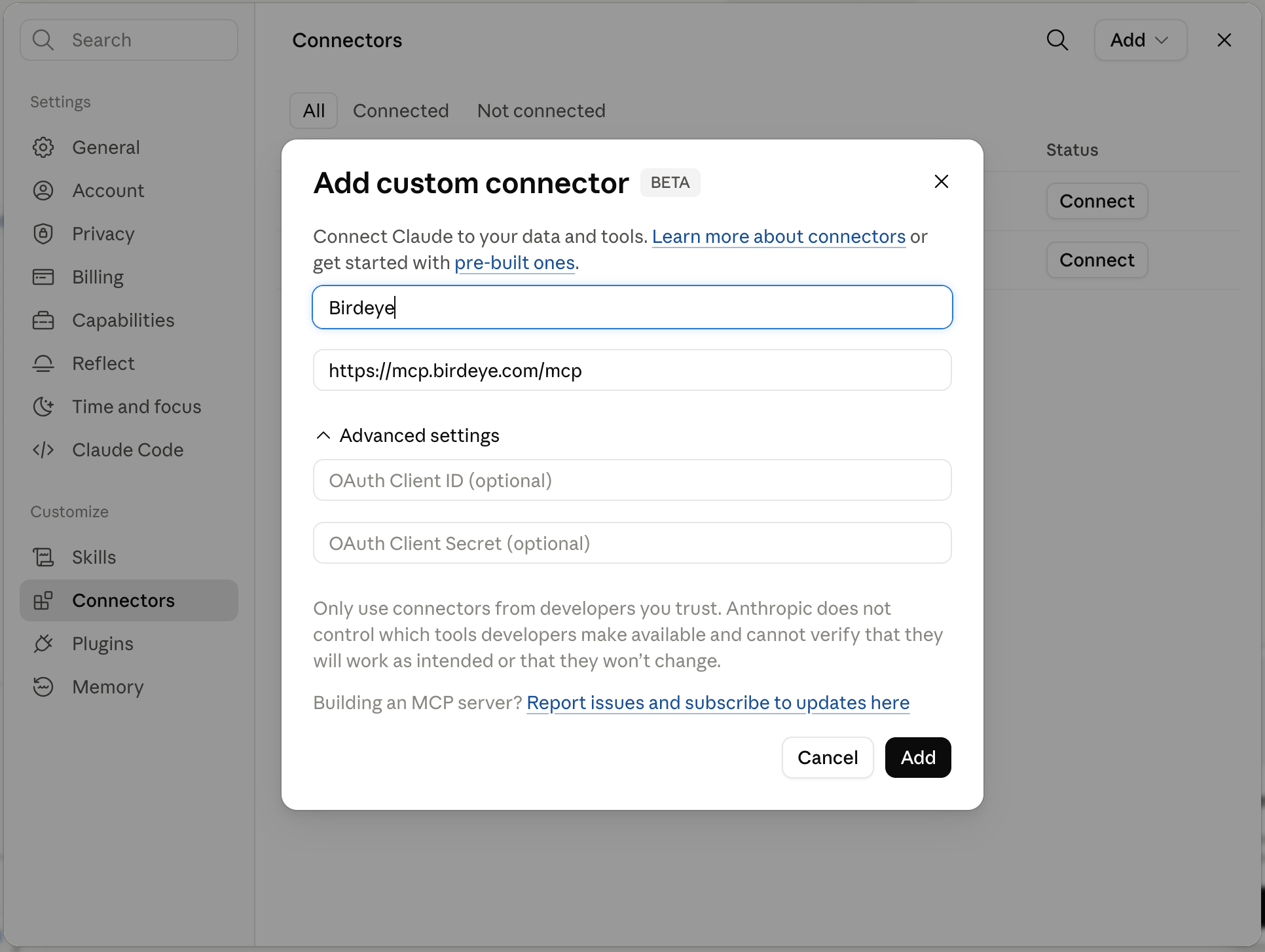 6. Click **Connect** — Claude will initiate the OAuth flow
7. Sign in with your Birdeye credentials to authorize access
8. Start a new conversation and ask anything about your Birdeye data
1. Go to [chatgpt.com](https://chatgpt.com) and open **Settings**
2. Navigate to **Plugins** → **Add new plugin**
3. Enter the Name as **Birdeye**
4. Enter the Connection URL:
```
https://mcp.birdeye.com/mcp
```
5. Choose Authentication as **OAuth**
6. Check **I understand and want to continue** → click **Create**
6. Click **Connect** — Claude will initiate the OAuth flow
7. Sign in with your Birdeye credentials to authorize access
8. Start a new conversation and ask anything about your Birdeye data
1. Go to [chatgpt.com](https://chatgpt.com) and open **Settings**
2. Navigate to **Plugins** → **Add new plugin**
3. Enter the Name as **Birdeye**
4. Enter the Connection URL:
```
https://mcp.birdeye.com/mcp
```
5. Choose Authentication as **OAuth**
6. Check **I understand and want to continue** → click **Create**
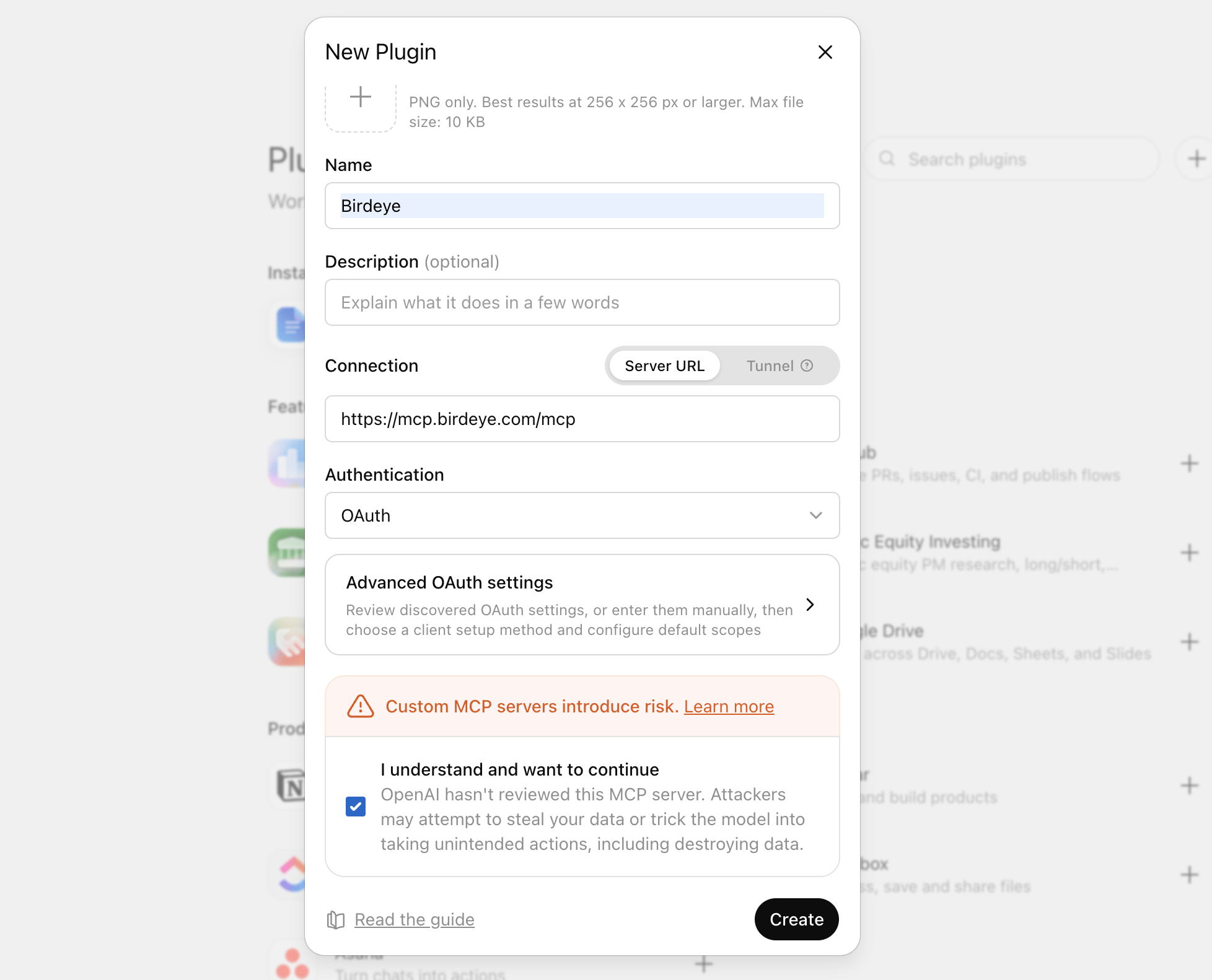 7. Authorize with your Birdeye credentials
8. Start a new conversation and ask anything about your Birdeye data by Mentioning Birdeye in chat.
Any client that supports MCP over **Streamable HTTP** can connect to Birdeye.
**Server URL**: `https://mcp.birdeye.com/mcp`\
**Transport**: Streamable HTTP (stateless sessions)\
**Auth**: OAuth 2.0 with Dynamic Client Registration
Refer to your client's documentation for how to add an authenticated MCP server.
## Verify the Connection
Once connected, try these prompts to confirm everything is working:
```
What is my business name and how many locations do I have?
```
```
Give me a review and rating overview for the last 30 days.
```
If the tools are connected correctly, your AI assistant will call the Birdeye MCP server and return live data from your account.
## Next Steps
Understand how OAuth 2.0 secures your data
See all available tools and their parameters
7. Authorize with your Birdeye credentials
8. Start a new conversation and ask anything about your Birdeye data by Mentioning Birdeye in chat.
Any client that supports MCP over **Streamable HTTP** can connect to Birdeye.
**Server URL**: `https://mcp.birdeye.com/mcp`\
**Transport**: Streamable HTTP (stateless sessions)\
**Auth**: OAuth 2.0 with Dynamic Client Registration
Refer to your client's documentation for how to add an authenticated MCP server.
## Verify the Connection
Once connected, try these prompts to confirm everything is working:
```
What is my business name and how many locations do I have?
```
```
Give me a review and rating overview for the last 30 days.
```
If the tools are connected correctly, your AI assistant will call the Birdeye MCP server and return live data from your account.
## Next Steps
Understand how OAuth 2.0 secures your data
See all available tools and their parameters